
Remember the last time you onboarded a new employee? You probably handed them a laptop, watched them struggle to set up their password, waited while they fumbled with their phone for MFA setup, and maybe even had to call IT when something inevitably went wrong. Sound familiar?
Here’s the good news: Microsoft Entra ID (formerly Azure AD) has a feature that makes this whole process smoother than your morning espresso. It’s called Temporary Access Pass, or TAP for short, and it’s about to become your new best friend for employee onboarding.
In this two-part series, we’ll walk through exactly what TAP is, why you should care, and how to implement it in your organization. By the end, you’ll have everything you need to transform your onboarding experience from frustrating to fantastic.
In Part 1, we’ll cover what TAP is, why it matters, and how to enable it in your environment. Next week in Part 2, we’ll dive into creating TAPs, the employee experience, best practices, and troubleshooting.
What Exactly is a Temporary Access Pass?
Think of a Temporary Access Pass as a VIP backstage pass for your new employees. It’s a time-limited, one-time (or limited-use) passcode that lets users sign in and register their authentication methods without needing a password first.
Here’s how it works at a high level: You generate a TAP in Entra ID, send it to your new hire, and they use it to sign in on their first day. During that initial sign-in, they can set up Windows Hello for Business, register their phone for MFA, configure the Microsoft Authenticator app, or even register a FIDO2 security key. All without ever needing to create or remember a traditional password.
The pass is secure because it’s:
-
- Time-limited (you set the expiration)
-
- Single-use or limited-use (configurable)
-
- Generated randomly by the system
-
- Only visible to admins who create it
Why Should You Care About TAP?
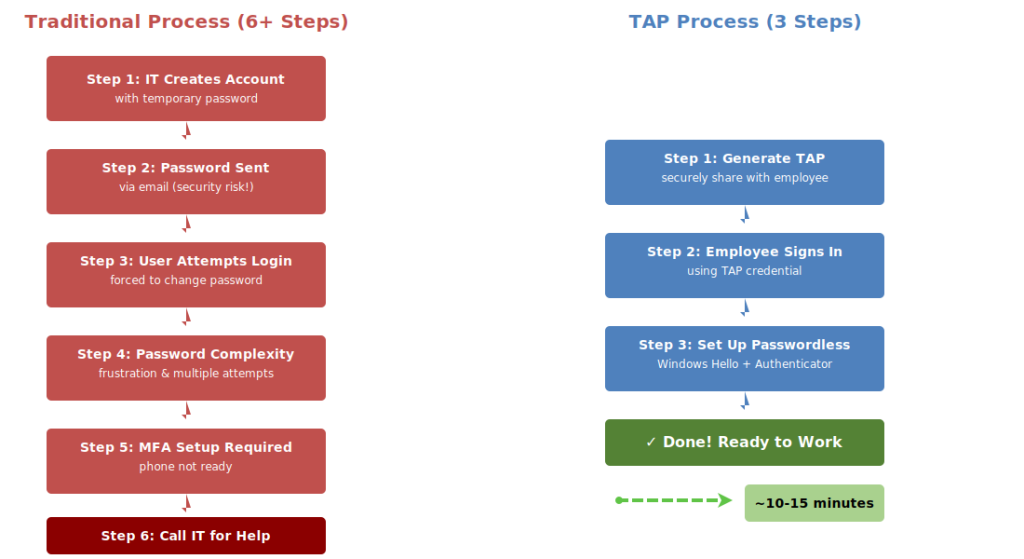
Let’s get real for a moment. Traditional employee onboarding is a pain. Here’s what usually happens:
-
- IT creates an account with a temporary password
-
- The password gets emailed (security risk!) or communicated via SMS
-
- New employee tries to log in, gets forced to change password
-
- Password doesn’t meet complexity requirements or some other issue arises, frustration ensues
-
- User finally logs in, now needs to set up MFA
-
- Phone isn’t set up yet, calls IT for help
This little dance wastes everyone’s time and creates a terrible first impression. A new employee’s first day should be awesome, not frustration filled. Using TAP, the process becomes far simpler:
-
- Generate TAP, securely share with new employee
-
- Employee signs in with the TAP
-
- Employee sets up passwordless authentication methods
That’s it. Three steps instead of six or more, and your new hire can focus on actually starting their job instead of wrestling with logging into their computer.
The Security Benefits
Beyond convenience, TAP actually improves your security posture. Here’s how:
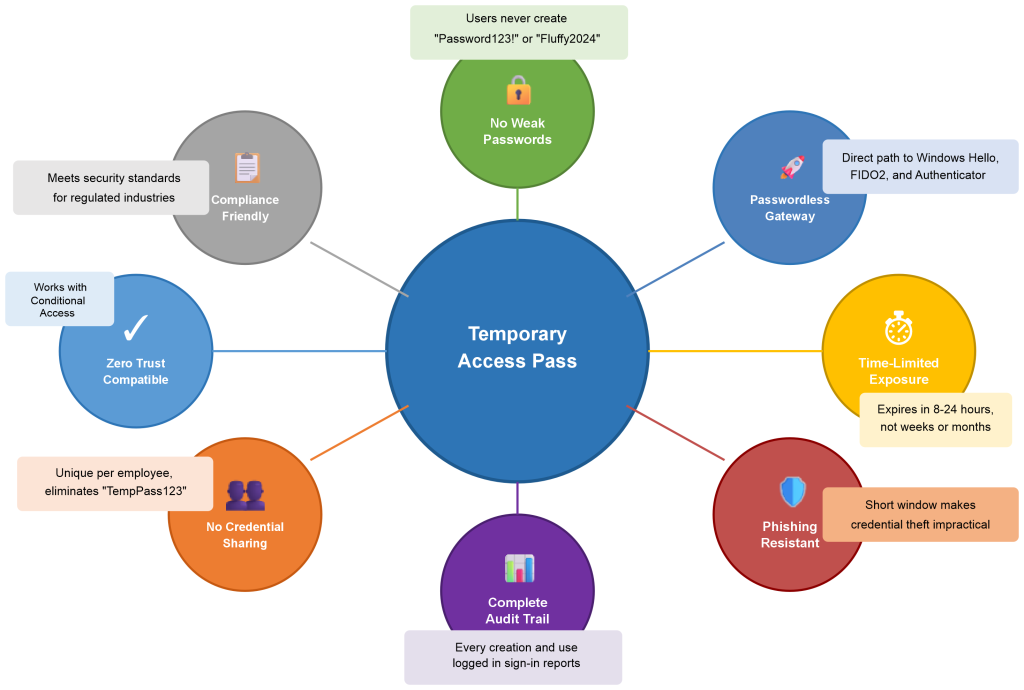
No weak passwords: Users never create a password that might be “Password123!” or their dog’s name
Encourages passwordless: TAP is the perfect gateway to passwordless authentication with Windows Hello or FIDO2 keys
Reduced phishing risk: Time-limited passes can’t be phished weeks after being issued
No credential sharing: Temporary credentials eliminate the common practice of sharing default passwords across teams
The Business Case
Let’s talk ROI. If each onboarding takes even 15 extra minutes of IT time to deal with password resets, MFA troubleshooting, and account lockouts, and you’re onboarding 50 employees per year, that’s 12.5 hours of saved IT time. At $75/hour for IT support, that’s nearly $1,000 in direct savings annually.
But the real value is in the employee experience. First impressions matter, and a smooth, modern onboarding process signals that your organization has its act together. That’s worth way more than the hard cost savings. Added bonus: fewer negative first impressions between the new employee and IT.
Prerequisites: What You Need Before Getting Started
Before you can start issuing TAPs like candy at Halloween, you need to make sure you’ve got the right setup. Here’s what you’ll need:
Licensing Requirements
Good news first: TAP is included with several Microsoft license tiers. You’ll need one of the following:
-
- Microsoft Entra ID Free (yes, FREE!)
-
- Microsoft 365 E3 or E5
-
- Microsoft Entra ID P1 or P2
-
- Microsoft Entra ID Governance
The fact that this works with Entra ID Free is huge. Microsoft isn’t paywalling basic security features, which is refreshing.
Required Permissions
You’ll need one of these admin roles to create and manage TAPs:
Global Administrator: Can do everything (but shouldn’t be your daily driver)
Privileged Authentication Administrator: Perfect for this task, follows the principle of least privilege
Authentication Administrator: Works for most users, but can’t manage other admins
Pro tip: If you’re setting this up for your organization, request the Privileged Authentication Administrator role. It gives you the permissions you need without the nuclear option of Global Admin.
System Requirements
Your environment needs to support the authentication methods you plan to register. This typically includes:
-
- Windows 10 version 1809 or later for Windows Hello for Business
-
- Microsoft Authenticator app available on iOS and Android
-
- FIDO2 security keys that are FIDO Alliance certified
Step-by-Step: Enabling Temporary Access Pass
Alright, let’s get into the how-to portion of our program. I’m going to walk you through enabling TAP in your tenant. This is a one-time setup that takes about 5 minutes.
Enable TAP in Your Tenant
1. Navigate to the Entra admin center: Open your browser and go to entra.microsoft.com. Sign in with an account that has the appropriate admin role.
2. Access Authentication Methods: In the left navigation pane, expand Protection, then click Authentication methods.
3. Select Temporary Access Pass: You’ll see a list of authentication methods. Click on Temporary Access Pass.
4. Enable the method: Toggle the Enable switch to Yes.
5. Configure your policy settings: This is where it gets interesting. You have several options to configure:
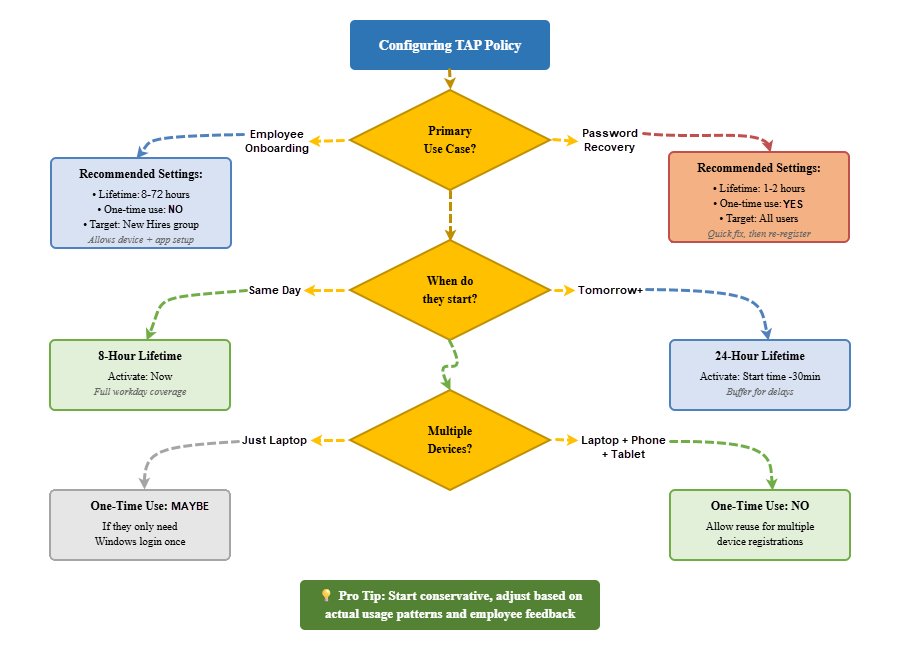
Minimum lifetime: This is the minimum number of minutes a TAP must be valid. Default is 60 minutes, but you can go as low as 10 minutes if you’re issuing passes for immediate use. For onboarding scenarios, I recommend keeping this at 60 minutes minimum to account for timezone confusion or late starts.
Maximum lifetime: The maximum duration a TAP can be valid. Default is 8 hours, maximum is 43,200 minutes (30 days). For employee onboarding, 72 hours is usually perfect (more on that in a minute). It gives new hires flexibility if their start date shifts, but doesn’t leave the door open for too long.
Default lifetime: When you create a TAP without specifying a duration, this is what it defaults to. I recommend 8 hours for same-day onboarding or 24 hours if you’re sending passes the day before someone starts.
Minimum length: The minimum number of characters in the generated pass. Default is 8, which is fine for time-limited use.
Maximum length: Maximum characters for the pass. Default and maximum is 48. Longer isn’t necessarily better here – 8-12 characters is plenty secure for a time-limited credential.
One-time use: This is crucial. Toggle this to Yes if you want the pass to become invalid after a single successful authentication. For onboarding, I actually recommend No (allow reuse) because employees often need to sign in multiple times during device setup – once for the PC, once for their phone, etc. The time limit provides enough security, we don’t need to go overboard.
6. Choose target users: Under the Target section, you can enable TAP for all users or specific groups. For testing, start with a pilot group. For production, you might enable it for all users or create a group called “New Hires” that gets populated through your HR provisioning workflow.
7. Save your settings: Click Save at the top of the page.
Congratulations! TAP is now enabled in your tenant. That wasn’t so bad, was it?
Understanding the Configuration Options
Let me share some real-world wisdom about these settings based on what I’ve seen work well in actual deployments.
Lifetime Settings: Finding the Sweet Spot
The default 8-hour maximum lifetime falls a little short. It’s often disconnected from the reality of when a TAP is created by IT and when the new employee first uses the TAP. I recommend modifying the Temporary Access Pass policy to allow a 72-hour lifetime )which is 4,320 minutes since Microsoft wants you to enter those instead of hours (insert eye roll here)). Here’s why a 72-hour lifetime hits the sweet spot:
For Monday morning starts: Issue the TAP on Friday afternoon with a 72-hour lifetime (4,320 minutes). This gives you buffer for weekend troubleshooting if needed, and keeps you from the Monday morning “beat the new guy to the office” game, but your still in good shape from a security perspective because the pass still expires by Tuesday.
For same-day onboarding: If you’re creating accounts and issuing TAPs the same morning, an 8-hour lifetime is perfect. The employee has their full workday to get set up, but the credential doesn’t linger overnight.
For international teams: Consider time zones carefully. If you have a new hire starting in Singapore but your IT team is in New York, you might want at least a 24-hour window to account for the time difference and any communication delays.
I’ve seen organizations get burned by setting lifetimes too long “just to be safe.” A 30-day TAP that never gets used is a security risk sitting in your environment. Shorter is better.
One-Time Use: The Nuance
This setting trips people up. Here’s the deal: if you enable one-time use, the TAP becomes invalid after a single successful authentication. Sounds secure, right? Well, hold that thought for a second.
Here’s what happens in real life: Sarah signs in to her Windows laptop using the TAP. Great! Just what we intended. Windows Hello setup even completes. Then she tries to access Outlook on her phone and… the TAP is already consumed. She calls IT. IT issues a new TAP. She uses it for her phone. Then she needs to enroll in Intune on her laptop and… you see where this is going.
For employee onboarding, I strongly recommend disabling one-time use. The time limitation provides adequate security while the reusability provides much-needed flexibility during that critical first login period.
One-time use makes more sense for scenarios like password recovery where you really do want a single-use credential.
Target Groups: Starting Smart
Don’t enable TAP for all users right out of the gate unless you’re extremely confident in your process. Here’s a better approach:
Week 1: Create a pilot group with your next 2-3 new hires. Test the whole flow. Iron out kinks.
Week 2-4: Expand to all new hires. Monitor closely. Gather feedback.
Month 2: Once it’s smooth, consider expanding to other use cases like password recovery or contractor access.
Pro tip: If you use an HR provisioning system (Workday, SuccessFactors, BambooHR, etc.), create a dynamic group in Entra ID that automatically includes users with a specific attribute like “employeeStartDate” that occurs within the next 7 days. This keeps your TAP-enabled population current without any manual management.
Security Considerations for TAP
Let’s talk about the elephant in the room: is TAP actually secure? Short answer: yes, when configured properly. Here’s the longer answer.
How TAP Compares to Traditional Temporary Passwords
Traditional approach: IT creates account with password “Password123!” and emails it to the new employee’s personal email. That password might sit in their inbox for days before they start. It might get forwarded to their spouse to “save for Monday.” It’s probably getting indexed by their email provider. Not great.
TAP approach: IT generates a cryptographically random pass that’s only valid for 8-72 hours, shared through a secure channel, and used once during a supervised onboarding session. Much better.
The Attack Surface
Let’s be realistic about the risks:
Time-limited exposure: An attacker has a very small window to capture and use a TAP. Compare this to a permanent password that might be reused across sites or stored in a browser.
Single purpose: TAPs are only useful for initial authentication and MFA setup. They can’t be used to reset passwords or change security settings (unless you’ve misconfigured your Conditional Access policies, which we’ll address).
Audit trail: Every TAP creation and use is logged. If something fishy happens, you’ll know exactly when the TAP was created, by whom, and when it was used.
Limited blast radius: Even if a TAP is compromised, the attacker still needs to get past your Conditional Access policies, device compliance requirements, and any location-based restrictions you’ve configured.
Hardening Your TAP Implementation
Want to make TAP even more secure? Here are some advanced configurations:
Require trusted locations: Create a Conditional Access policy that only allows TAP authentications from your corporate network or VPN. This means even if a TAP is intercepted, it’s useless outside your trusted locations.
Device compliance: Require that the device being used with a TAP is already registered in Intune or meets certain compliance criteria. This works well if you’re shipping pre-configured devices to new hires.
Risk-based policies: Use Entra ID Protection to block TAP use if the sign-in shows unacceptable signs of risk (unfamiliar location, anonymous IP, etc.).
Session limitations: Configure session controls to require reauthentication with a stronger method after the initial TAP sign-in completes.
What Happens After TAP is Enabled?
Once you click that Save button, a few things happen behind the scenes:
-
- The TAP authentication method becomes available for all users in your target group
-
- Admins with appropriate permissions can start issuing TAPs
-
- The TAP policy is synchronized across your Entra ID tenant
-
- Sign-in logs start capturing TAP usage data
Nothing changes for existing users. They continue authenticating however they were before. TAP is purely additive to your authentication landscape.
Testing Your TAP Configuration
Before you roll this out to real new hires, test it yourself. Here’s a simple test plan:
1. Create a test user account with no authentication methods registered.
2. Issue yourself a TAP for that test account. Note the exact time and lifetime.
3. Sign in with the TAP on a test device (this can even be a VM). Verify you can successfully authenticate.
4. Register authentication methods (Windows Hello, Authenticator app, SMS) during the TAP session.
5. Test subsequent sign-ins to verify the registered methods work.
6. Check the sign-in logs to confirm TAP usage is being recorded properly.
7. Verify the TAP expires as expected when the assigned lifetime ends.
This whole test should take less than 30 minutes and will give you confidence the system works before you use it with real employees.
Coming Up in Part 2
We’ve covered a lot of ground today! You now understand what TAP is, why it’s valuable, and how to enable it in your Entra ID tenant. You’ve configured the policy settings and you’re ready to start issuing passes.
Next week in Part 2, we’ll dive into the practical details:
-
- How to create TAPs for users (GUI and PowerShell methods)
-
- The complete employee experience from receiving a TAP to passwordless authentication
-
- Best practices for secure distribution and monitoring
-
- Common pitfalls and detailed troubleshooting
-
- Alternative use cases beyond employee onboarding
-
- Measuring success and ROI
Until then, if you want to get a head start, go ahead and enable TAP in a test environment or for a pilot group. Play around with the settings. Create some test TAPs. Get comfortable with the interface. When we pick up next week, you’ll be ready to hit the ground running with your first real deployment.
About Azure Innovators
At Azure Innovators, we turn technological challenges into opportunities for growth. Our expert consultants bring decades of combined experience to deliver innovative solutions that drive our clients’ businesses forward. Whether you need help implementing modern authentication, securing your Microsoft 365 environment, or designing a comprehensive cloud security strategy, we’re here to help.
Stay tuned for Part 2 next week! We’ll cover everything you need to know about creating and managing Temporary Access Passes in production.